

In the post Tab Layout in Android with ActionBar and Fragment I explain how to implement tabs and in the post Swipe views I explain how to implement the swipe views or scrolling tabs using the ViewPager of the Compatibility Package.
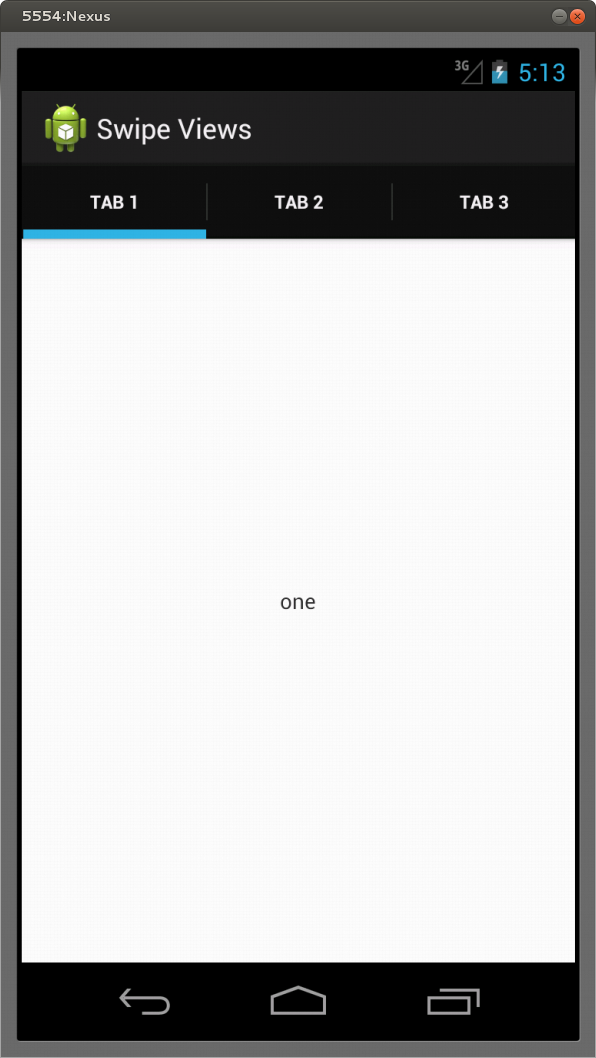
In this post I explain how to implement 3 tabs that look like those in the post Tab Layout in Android with ActionBar and Fragment but with similar functionality to the swipe views.
In Implementing Effective Navigation there is an example for this type of layout using ViewPager and FragmentPagerAdapter, which are part of the Compatibility Package.
I noticed that you get a similar code similar when you create a new Android project using Android SDK Tools Revision 20, and choosing as the Navigation Type in the project creation wizard “Tabs + Swipe” as shown.

The code in this post is similar to that in Implementing Effective Navigation but with the change that the layout of the fragments are taken from file .xml
- create an Android project
- Build SDK: API 16
- Minimum required SDK: API 14
- don’t create activities
- import the Compatibility Package; maybe you already imported it if there is a directory “libs” with the file android-support-v4.jar, otherwise you do a right click on the project and select Android Tools -> Add Support Library or follow the instructions in Support Library
- edit the file AndroidManifest.xml
<manifest xmlns:android="http://schemas.android.com/apk/res/android" package="eu.lucazanini.swipeviews" android:versionCode="1" android:versionName="1.0"> <uses-sdk android:minSdkVersion="14" android:targetSdkVersion="16" /> <application android:icon="@drawable/ic_launcher" android:label="@string/app_name" android:theme="@style/AppTheme" > <activity android:name=".MainActivity" android:label="@string/app_name" > <intent-filter> <action android:name="android.intent.action.MAIN" /> <category android:name="android.intent.category.LAUNCHER" /> </intent-filter> </activity> </application> </manifest> - edit the file res/values/strings.xml
<resources> <string name="app_name">Swipe Views</string> <string name="body1">one</string> <string name="body2">two</string> <string name="body3">three</string> <string name="label1">Tab 1</string> <string name="label2">Tab 2</string> <string name="label3">Tab 3</string> </resources> - create the files main.xml, tab1.xml, tab2.xml e tab3.xml in the directory res/layout
- main.xml
<!-- Copyright 2012 The Android Open Source Project Licensed under the Apache License, Version 2.0 (the "License"); you may not use this file except in compliance with the License. You may obtain a copy of the License at http://www.apache.org/licenses/LICENSE-2.0 Unless required by applicable law or agreed to in writing, software distributed under the License is distributed on an "AS IS" BASIS, WITHOUT WARRANTIES OR CONDITIONS OF ANY KIND, either express or implied. See the License for the specific language governing permissions and limitations under the License. --> <android.support.v4.view.ViewPager xmlns:android="http://schemas.android.com/apk/res/android" android:id="@+id/pager" android:layout_width="match_parent" android:layout_height="match_parent"> </android.support.v4.view.ViewPager> - tab1.xml
<?xml version="1.0" encoding="utf-8"?> <LinearLayout xmlns:android="http://schemas.android.com/apk/res/android" android:id="@+id/tab1" android:layout_width="match_parent" android:layout_height="match_parent" android:orientation="vertical" android:gravity="center"> <TextView android:id="@+id/textView1" android:layout_width="wrap_content" android:layout_height="wrap_content" android:layout_gravity="center" android:text="@string/body1" /> </LinearLayout> - tab2.xml
<?xml version="1.0" encoding="utf-8"?> <LinearLayout xmlns:android="http://schemas.android.com/apk/res/android" android:id="@+id/tab2" android:layout_width="match_parent" android:layout_height="match_parent" android:orientation="vertical" android:gravity="center"> <TextView android:id="@+id/textView2" android:layout_width="wrap_content" android:layout_height="wrap_content" android:layout_gravity="center" android:text="@string/body2" /> </LinearLayout> - tab3.xml
<?xml version="1.0" encoding="utf-8"?>
<LinearLayout xmlns:android="http://schemas.android.com/apk/res/android"
    android:id="@+id/tab3"
    android:layout_width="match_parent"
    android:layout_height="match_parent"
    android:orientation="vertical"
    android:gravity="center">

    <TextView
        android:id="@+id/textView3"
        android:layout_width="wrap_content"
        android:layout_height="wrap_content"
        android:layout_gravity="center"
        android:text="@string/body3" />

</LinearLayout>
the file main.xml contains a reference to ViewPager but it is missing the part on the bar of the tabs as defined in Swipe views;
the files tab*.xml contain the layout of the fragments
- main.xml
- create the file eu/lucazanini/viewpager/MainActivity.java
package eu.lucazanini.swipeviews;

/**
 * Copyright 2012 The Android Open Source Project
 *
 * Licensed under the Apache License, Version 2.0 (the "License");
 * you may not use this file except in compliance with the License.
 * You may obtain a copy of the License at
 *
 *     http://www.apache.org/licenses/LICENSE-2.0
 *
 * Unless required by applicable law or agreed to in writing, software
 * distributed under the License is distributed on an "AS IS" BASIS,
 * WITHOUT WARRANTIES OR CONDITIONS OF ANY KIND, either express or implied.
 * See the License for the specific language governing permissions and
 * limitations under the License.
 */

import android.app.ActionBar;
import android.app.FragmentTransaction;
import android.os.Bundle;
import android.support.v4.app.Fragment;
import android.support.v4.app.FragmentActivity;
import android.support.v4.app.FragmentManager;
import android.support.v4.app.FragmentPagerAdapter;
import android.support.v4.view.ViewPager;
import android.view.LayoutInflater;
import android.view.View;
import android.view.ViewGroup;

public class MainActivity extends FragmentActivity implements
	ActionBar.TabListener {

    /**
     * The {@link android.support.v4.view.PagerAdapter} that will provide
     * fragments for each of the three primary sections of the app. We use a
     * {@link android.support.v4.app.FragmentPagerAdapter} derivative, which
     * will keep every loaded fragment in memory. If this becomes too memory
     * intensive, it may be best to switch to a
     * {@link android.support.v4.app.FragmentStatePagerAdapter}.
     */
    CollectionPagerAdapter mCollectionPagerAdapter;

    /**
     * The {@link android.support.v4.view.ViewPager} that will display the
     * object collection.
     */
    ViewPager mViewPager;

    public void onCreate(Bundle savedInstanceState) {
	super.onCreate(savedInstanceState);
	setContentView(R.layout.main);

	// Create an adapter that when requested, will return a fragment
	// representing an object in
	// the collection.
	//
	// ViewPager and its adapters use support library fragments, so we must
	// use
	// getSupportFragmentManager.
	mCollectionPagerAdapter = new CollectionPagerAdapter(
		getSupportFragmentManager());

	// Set up action bar.
	final ActionBar actionBar = getActionBar();

	// Specify that the Home/Up button should not be enabled, since there is
	// no hierarchical
	// parent.
	actionBar.setHomeButtonEnabled(false);

	// Specify that we will be displaying tabs in the action bar.
	actionBar.setNavigationMode(ActionBar.NAVIGATION_MODE_TABS);

	// Set up the ViewPager, attaching the adapter and setting up a listener
	// for when the
	// user swipes between sections.
	mViewPager = (ViewPager) findViewById(R.id.pager);
	mViewPager.setAdapter(mCollectionPagerAdapter);
	mViewPager
		.setOnPageChangeListener(new ViewPager.SimpleOnPageChangeListener() {
		    @Override
		    public void onPageSelected(int position) {
			// When swiping between different app sections, select
			// the corresponding tab.
			// We can also use ActionBar.Tab#select() to do this if
			// we have a reference to the
			// Tab.
			actionBar.setSelectedNavigationItem(position);
		    }
		});

	// For each of the sections in the app, add a tab to the action bar.
	for (int i = 0; i < mCollectionPagerAdapter.getCount(); i++) {
	    // Create a tab with text corresponding to the page title defined by
	    // the adapter.
	    // Also specify this Activity object, which implements the
	    // TabListener interface, as the
	    // listener for when this tab is selected.
	    actionBar.addTab(actionBar.newTab()
		    .setText(mCollectionPagerAdapter.getPageTitle(i))
		    .setTabListener(this));
	}
    }

    public void onTabUnselected(ActionBar.Tab tab,
	    FragmentTransaction fragmentTransaction) {
    }

    public void onTabSelected(ActionBar.Tab tab,
	    FragmentTransaction fragmentTransaction) {
	// When the given tab is selected, switch to the corresponding page in
	// the ViewPager.
	mViewPager.setCurrentItem(tab.getPosition());
    }

    public void onTabReselected(ActionBar.Tab tab,
	    FragmentTransaction fragmentTransaction) {
    }

    /**
     * A {@link FragmentPagerAdapter} that returns a fragment corresponding to
     * one of the primary sections of the app.
     */
    public class CollectionPagerAdapter extends FragmentPagerAdapter {

	final int NUM_ITEMS = 3; // number of tabs

	public CollectionPagerAdapter(FragmentManager fm) {
	    super(fm);
	}

	@Override
	public Fragment getItem(int i) {
	    Fragment fragment = new TabFragment();
	    Bundle args = new Bundle();
	    args.putInt(TabFragment.ARG_OBJECT, i);
	    fragment.setArguments(args);
	    return fragment;
	}

	@Override
	public int getCount() {
	    return NUM_ITEMS;
	}

	@Override
	public CharSequence getPageTitle(int position) {
	    String tabLabel = null;
	    switch (position) {
	    case 0:
		tabLabel = getString(R.string.label1);
		break;
	    case 1:
		tabLabel = getString(R.string.label2);
		break;
	    case 2:
		tabLabel = getString(R.string.label3);
		break;
	    }

	    return tabLabel;
	}
    }

    /**
     * A fragment that launches other parts of the demo application.
     */
    public static class TabFragment extends Fragment {

	public static final String ARG_OBJECT = "object";

	@Override
	public View onCreateView(LayoutInflater inflater, ViewGroup container,
		Bundle savedInstanceState) {

	    Bundle args = getArguments();
	    int position = args.getInt(ARG_OBJECT);

	    int tabLayout = 0;
	    switch (position) {
	    case 0:
		tabLayout = R.layout.tab1;
		break;
	    case 1:
		tabLayout = R.layout.tab2;
		break;
	    case 2:
		tabLayout = R.layout.tab3;
		break;
	    }

	    View rootView = inflater.inflate(tabLayout, container, false);

	    return rootView;
	}
    }

}
the main class extends FragmentActivity and not Activity as usually;
in the event onCreate you bind an instance of FragmentPagerAdapter (mCollectionPagerAdapter) to an instance of ViewPager (mViewPager) defined in the file main.xml and it is very important you enable the NAVIGATION_MODE_TABS for the actionBar;
in the inner class CollectionPagerAdapter you define the number of the tabs (NUM_ITEMS) and override 3 methods: getItem in which you create the fragments, getCount that simply returns the number of the fragments (tabs) and getPageTitle that returns the labels of the tabs; in an other inner class TabFragment you create the fragments choosing the layout depending on the bundle passed to the fragment in the CollectionPagerAdapter;
the class CollectionPagerAdapter is not static like in Implementing Effective Navigation in order to get the string resources in the method getPageTitle, otherwise you need a static Context in the main class - launch the app


Leave a Reply